-01-1.png?width=1200&height=238&name=Logo%20-%20Social%20(V001)-01-1.png)
 ·
4 minute read
·
4 minute read
At 9:47pm, your client finally opens the document – on their phone, half-distracted.
And you get the text:
- “Is this my payment?”
- “Why is cash to close so high?”
- “Where do I upload this?”
- “So what do you want me to do?”
Here’s what’s brutal: clients don’t blame the portal. They blame the pro.
“This is confusing” turns into “this process is messy” – and messy kills confidence.
Even when you save the deal, you pay the tax. Your evenings and weekends get eaten by questions that should not exist.
In a crowded market, this is where people get compared.
The other LO or agent didn’t magically have better rates or better photos. They just made it feel easier.
Every delay feels small until it pushes a deadline, costs you a weekend, or costs you the referral.
Jump to:
What is MVP | Loan estimate video walkthrough | Offer and counteroffer video walkthrough | How to send a screen recording video to a client | FAQs
Clarity is a competitive advantage
Real estate and mortgage are referral games.
NAR found 43% of buyers found their agent through a friend, neighbor, or relative (and it’s even higher for first-time buyers).
People don’t refer “nice.” They refer “made it simple.”
And for first-time buyers, NAR found one of the most valuable things an agent did was helping them understand the process. 76% said their agent’s help with that was invaluable.
Text is the channel. Video is the payload.
Zillow’s consumer research shows communication preferences are split, with text (34%) and phone (33%) nearly tied overall, and first-time buyers leaning harder into text (42%).
That doesn’t mean clients want a novel in a text thread.
It means they want a text with a link that makes the next step obvious.
What is MVP (My Video Pages)?
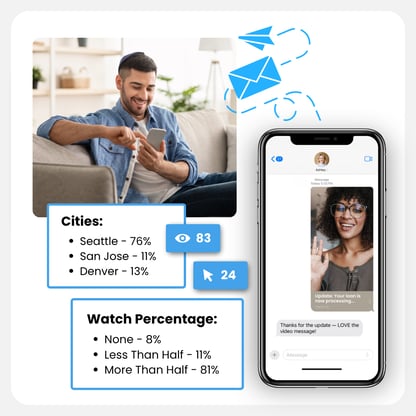
MVP is a video messaging feature that converts your videos into a trackable page that you can share via text or email.
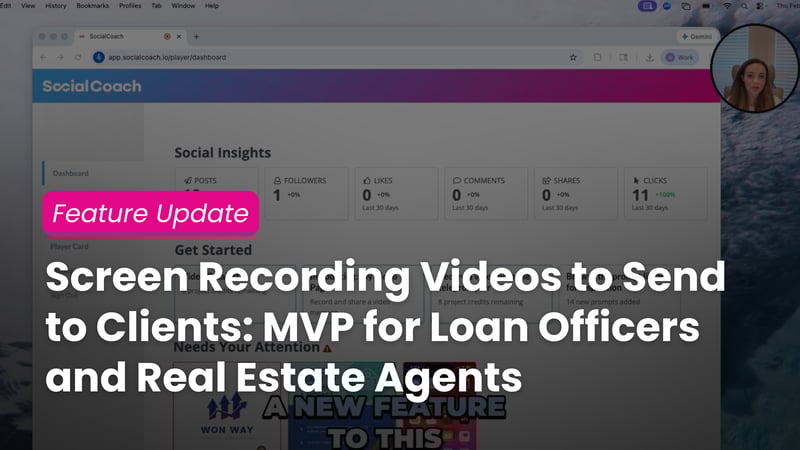
It can be face-to-camera, screen recording, or both at once. Each page includes a CTA button and tracking to see who watched and clicked.
👉 Learn more about My Video Pages here
Screen recording for loan officers and real estate agents
If you want the fastest win, use screen recording when your client needs to click, upload, sign, or decide.
If you only take one thing from this post, steal these two examples. They cover the two moments where clients get the most confused.
Screenshot idea (place it right here): show an MVP page with the CTA button visible, plus the “Call me now” tap-to-call option.
Loan Estimate video walkthrough (for loan officers)
This is where borrowers spiral. Too many numbers, not enough context.
Subject line you can steal:
-
Your Loan Estimate in 2 minutes
What to show (keep it tight):
- Rate + loan amount
- Estimated cash to close
- Monthly payment and whether taxes/insurance are included
- One sentence on anything “weird” (points, credits, buydown)
Video title (copy/paste):
- Your Loan Estimate (2-minute walkthrough)
Best CTA buttons:
- Confirm this option
- Upload requested docs
- Call me now (tap-to-call)
Text you send (copy/paste):
“Quick video so this is crystal clear. I’m going to walk through your Loan Estimate and show the only 3 sections that matter. When you’re ready, click the button on this page for the next step.”
Want to try this workflow? Learn more about MVP here
Offer and counteroffer video walkthrough (for real estate agents)
This is where clients get emotional and slow down, because they don’t know what matters and what’s negotiable.
Subject line you can steal:
- Offer terms + what I recommend
What to show (in this order):
- Price
- Timeline + deadlines
- Contingencies
- Credits, repairs, concessions
- Your recommendation
- The one decision you need today
MVP title (copy/paste):
- Offer terms + my recommendation
Best CTA buttons:
- Approve this counter
- Pick option A or B
- Call me now (tap-to-call)
Text you send (copy/paste):
“Quick video so you don’t have to decode this. I’ll walk through the terms in the order that matters and tell you what I recommend. Then click the button on this page with what you want to do.”
Want to try this workflow? Learn more about MVP here
The underrated MVP move: CTA buttons that finish the task
The walkthrough is great. The button is where the deal moves.
Your CTA can be:
- Upload documents
- Confirm option A
- Approve the counteroffer
- Schedule a 10-minute call
- Call me now (tap-to-call so they dial instantly)
When emotions spike, “reply” is a weak CTA. “Call me now” is the fastest reset.
How to send a screen recording video to a client
- Record your screen (face cam optional)
- Add a title and one CTA button
- Text or email the MVP link
Do this today:
Pick one:
- Record a Loan Estimate walkthrough for a borrower who’s stuck
- Record an offer or counteroffer walkthrough for a client who’s hesitating
Keep it under 2 minutes. Add one CTA button. Send the link by text.
Don’t be the pro who sends PDFs and hopes they get it. Be the pro who makes it obvious.
Ready to try MVP?
For Individuals (loan officers, agents)
For Enterprise Companies (mortgage lenders, banks, credit unions, brokerages)
Book a SocialCoach demo here.
Frequently Asked Questions
What is the best way to send screen recording videos to clients?
Send a short screen recording as one link with a clear next step (CTA button). Texting the link works well because clients can watch and act without scheduling a call.
How do loan officers explain a Loan Estimate with video?
Use a 90-second Loan Estimate video walkthrough and highlight rate/loan amount, cash to close, and the monthly payment. End with a CTA like “Confirm this option” or “Call me now.”
How do real estate agents explain an offer or counteroffer with video?
Use an offer and counteroffer video walkthrough and cover price, deadlines, contingencies, credits/repairs, and your recommendation. End with a CTA like “Approve this counter” or “Pick option A or B.”
Can I record my screen and my face at the same time?
Yes. You can record your screen with an optional webcam overlay (picture-in-picture).